
Chapter 10
“Ask the map” assistant
The assistant is a conversation panel inside the viewer. You ask it in plain language about layers, the features they contain or a place, and it answers with what it finds in the system. It is the only part of Tesela that uses artificial intelligence: change detection is mathematical and does not depend on it.
Opening the assistant
- On the viewer toolbar, click the “Assistant” button (its help text reads “Ask the map about the layers and analyses”).
- Type your question in the “Ask the map…” box and click “Send”. While it answers you will see “Thinking…”.
- To start another topic, click “New conversation”. The assistant takes into account only the latest messages of the current conversation.
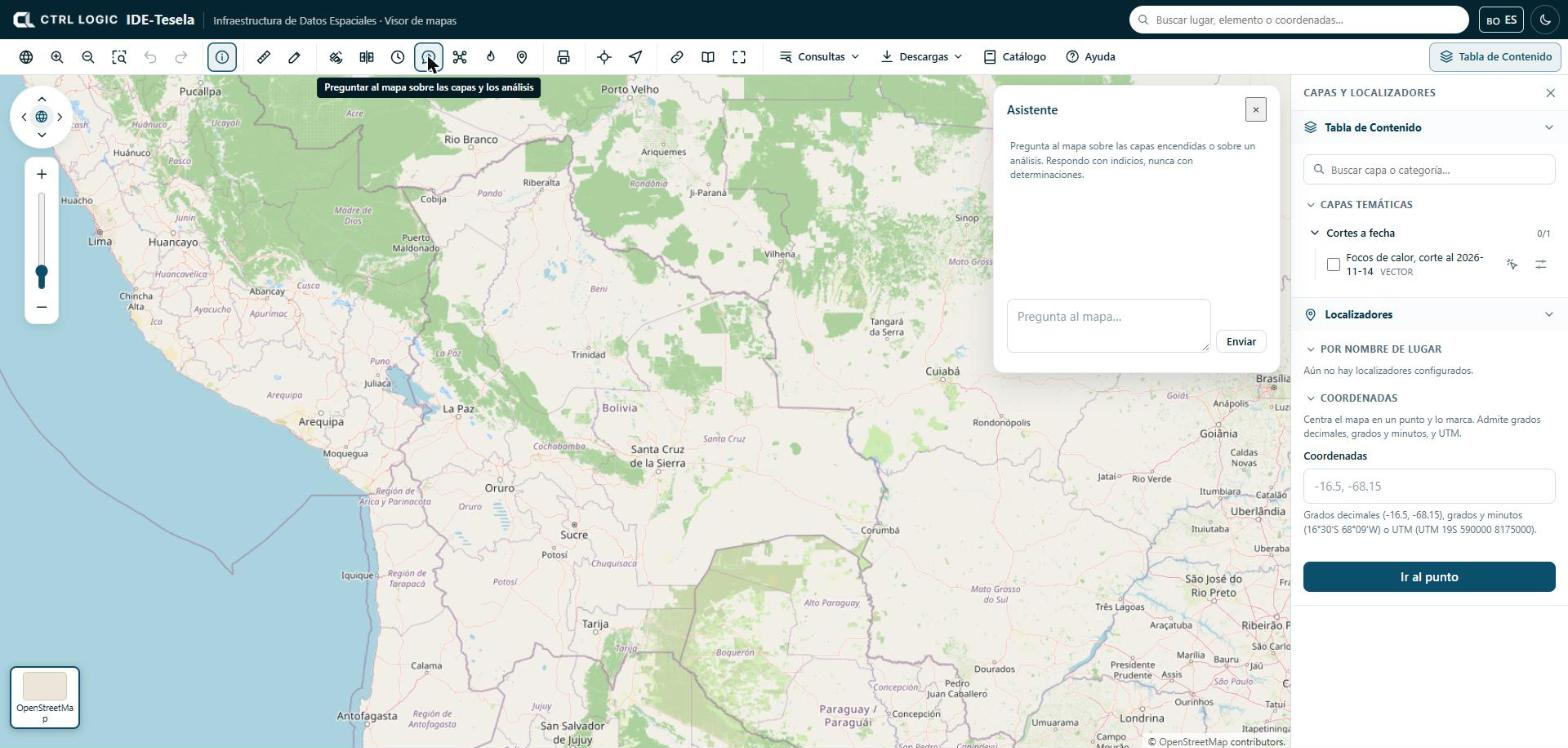
The button appears only if your profile has the “Use the assistant” permission and the administrator left the “Assistant” option visible for you.
What it can do
The assistant has five tools, deliberately few:
| Tool | What it does |
|---|---|
| List layers | Shows the catalog layers that you can see, with their name, type and category. |
| Count features | Counts how many features a vector layer has, optionally within a box on the map. |
| Summarize a field | Says which values a field has and how many features there are of each; if it is numeric, it also gives the sum, mean, minimum and maximum. |
| List the fields of a layer | Says which fields a layer has and the type of each. |
| Find a place | Locates a place or a feature by its name. |
Useful questions
- “Which layers are available about protected areas?”
- “How many features does the municipalities layer have?”
- “Which fields does this layer have?”
- “What types are there and how many of each in the category field?”
- “Where is such-and-such municipality?”
Ask about what is in the layers. If something is not in the available information, the assistant should say so instead of assuming it. It answers in the language in which you ask.
What it does not do
- It does not modify anything. It is read-only by design: it cannot write, delete or publish. It uses the same queries as the viewer.
- It uses your permissions. If you cannot see a layer, neither can the assistant.
- It does not determine. It speaks of indications, alterations or activity consistent with something, and reminds you that they require verification. It does not state that anything is illegal or confirmed.
The assistant can make mistakes, like any language model. Check important figures against the attribute table or the analysis sheet.
If it does not answer
When the assistant cannot answer (for example, because no provider is configured, the key has expired, the quota has run out or there is no connection), you always see the same message: “The request cannot be processed right now. Please contact the administrator.” The provider is not named. The technical detail stays in the server log, available to the administrator.
For the administrator: choosing a provider and key
In the menu, under the “Settings” group, open “AI assistant” (it requires the “Manage the assistant” permission). There you choose the model provider: Claude from Anthropic, ChatGPT from OpenAI or Gemini from Google. Only one can be active at a time.
- Choose the provider and enter the “Model” (you can consult the list of models it offers or type the name).
- Paste the “API key”. It is stored encrypted on the server and is never shown again: you will only see “saved”.
- Click “Test connection”. If it succeeds, click “Turn on”.
- Optional, under “Advanced settings”: maximum tokens per response, temperature, service address and assistant instruction. If you leave the instruction empty, the system’s own is used, which already includes the cautious-language rules.
What is asked of the assistant is sent to the chosen provider’s service: the text of the query and what the person has on screen. No data from restricted layers is sent. Keep this in mind when choosing a provider.
Summary
- Conversation panel in the viewer, read-only and with your permissions.
- Five tools: list layers, count features, summarize a field, list fields and find a place.
- It answers with indications and asks for verification.
- The administrator chooses provider and key under “Settings” → “AI assistant”; the key never leaves the server.
- Whatever the failure, you will see the same message and should contact the administrator.