
Chapter 1
Introduction to Tesela
The screenshots show the Spanish interface; the same screens are available in English and Portuguese from the language selector.
Tesela is a territorial monitoring platform from CTRL-LOGIC. It is used to watch how a territory changes over time: it compares satellite images, calculates indices, delineates areas with alterations, cross-references them with reference layers (municipalities, protected areas) and takes them to a map viewer where authorized people review them. This chapter explains what the system is and is not, how to sign in and how to find your way around the interface.
What it is and what it is not
Tesela is a technical tool that supports management, analysis and oversight. It helps you decide where to look first.
- It does not determine illegality. It detects indications, alterations or activity consistent with… something, and always marks them as “requires verification”. The conclusion is reached by the competent institution through its own procedure.
- It does not replace field inspection or institutional systems: it is a layer that builds on them.
- It is not an official geoportal. A geoportal publishes information that has already been validated; Tesela produces new information that has not been validated yet.
- Detection does not use artificial intelligence. It relies on spectral indices and thresholds that can be read, repeated and explained. Artificial intelligence is used only in the “Ask the map” assistant, which queries data and is read-only (chapter 10).
Every Tesela result is an indication that requires verification. The system does not determine the cause or the legality of what it shows. The data in the screenshots in this manual is demonstration data.
How to sign in
- Open the Tesela address provided by your institution. The sign-in screen appears.
- Enter your institutional email and your password. The eye icon shows or hides the password as you type.
- Click “Sign in”.
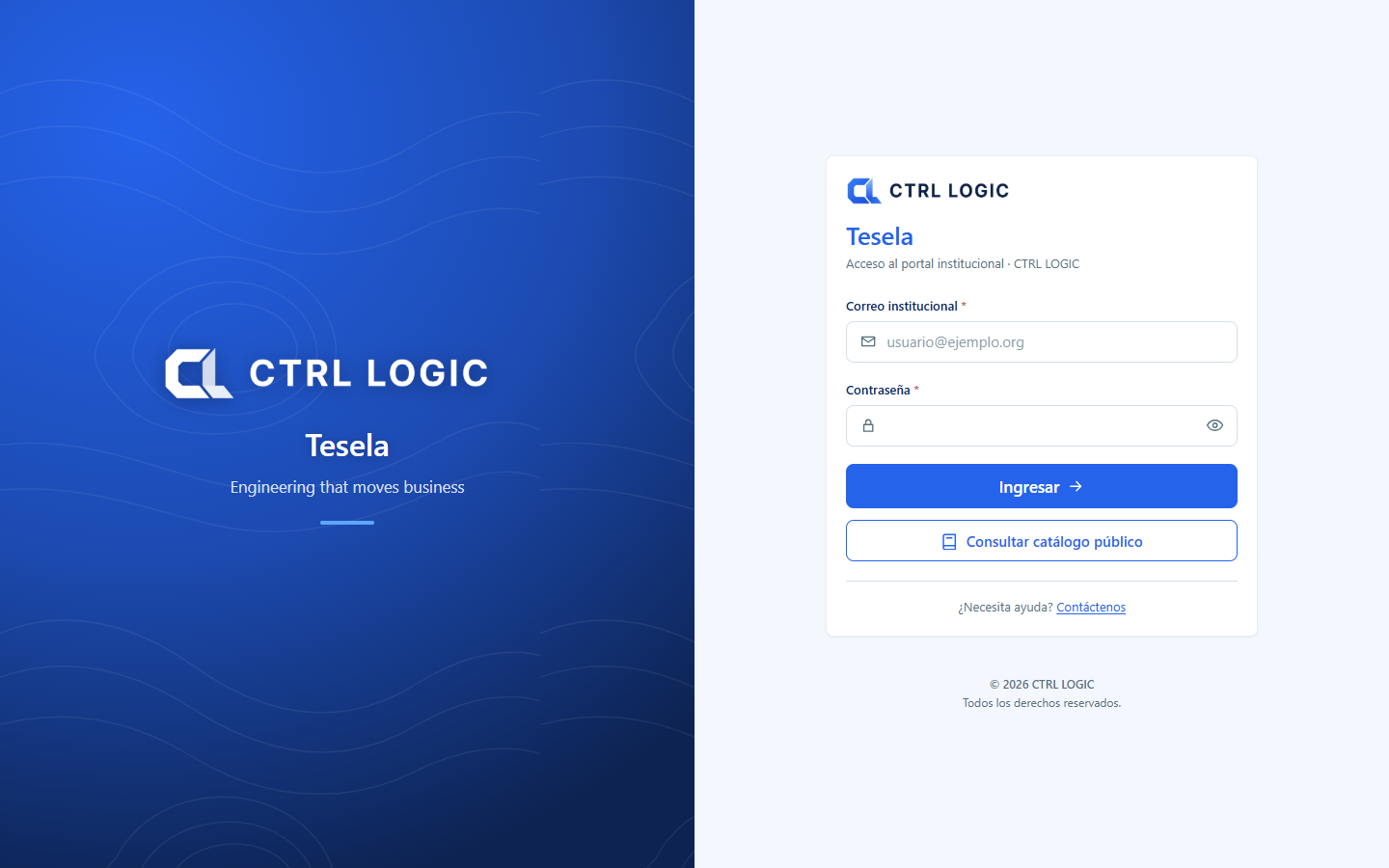
Other options on the sign-in screen:
- “Browse the public catalog”: enter without an account and see only what the institution has made public.
- “I forgot my password”: sends a six-digit code to your email, valid for 15 minutes, so you can choose a new password.
- “Create an account”: request registration if you do not have an account yet.
If an administrator gave you a temporary password, the system asks you to change it the first time you sign in. The new password must be at least 10 characters long, with lowercase letters, uppercase letters and at least one number.
Language and theme
At the top right of the system and of the viewer there are two controls:
- Language selector: a button showing the flag and code of the active language (ES, EN or PT). Click it to choose between Español, English and Português. Each language is written in its own language.
- Theme button: switches between light mode and dark mode (“Switch to dark mode” / “Switch to light mode”).
Interface texts are translated; layer titles are data and remain in their original language.
Map of the interface
Outside the viewer, the screens share one structure: a side menu on the left and a header at the top. On narrow screens the menu opens with the three-line button.
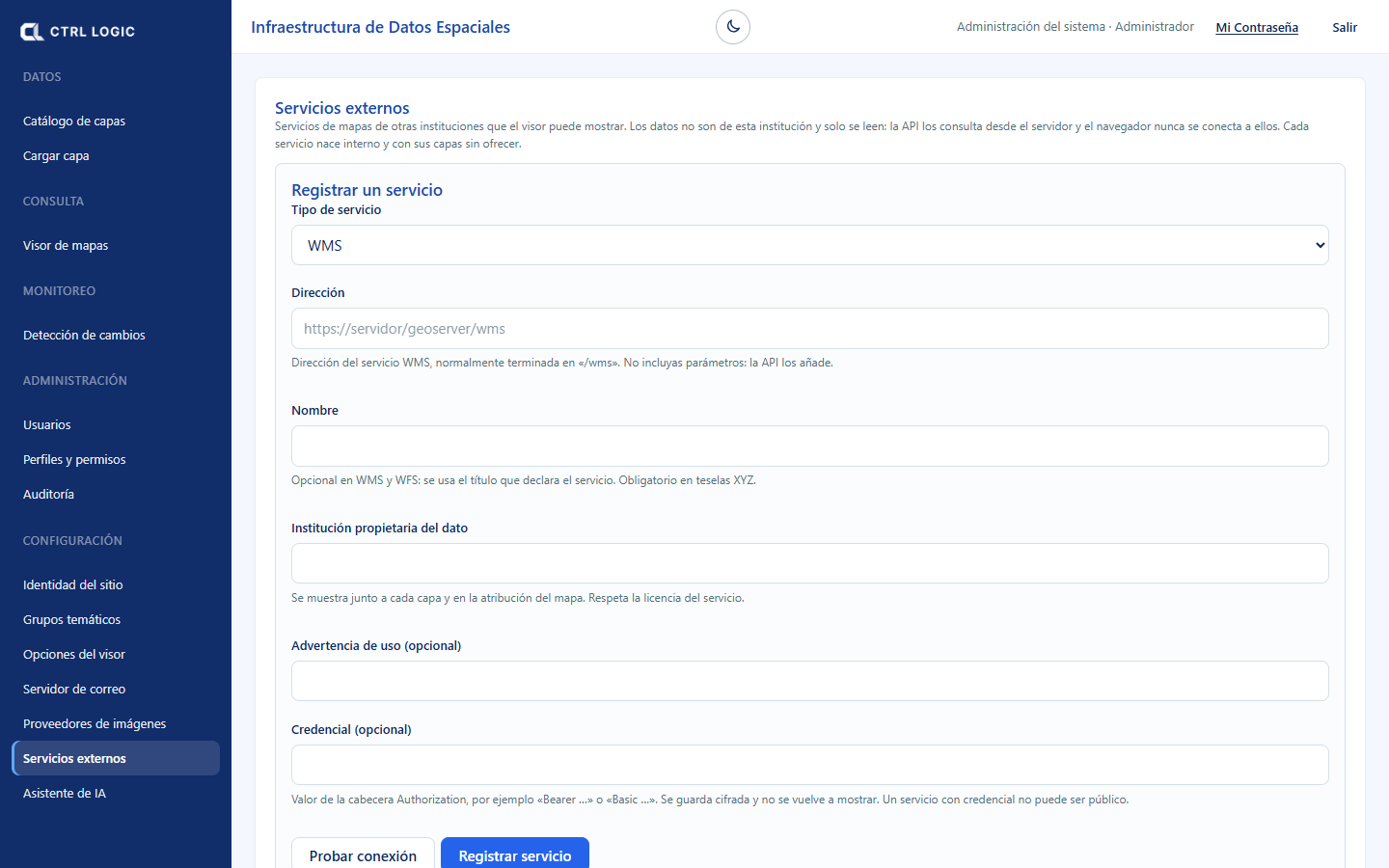
| Menu group | What it contains |
|---|---|
| Data | “Layer catalog” and “Upload layer” |
| Query | “Map viewer”, where most of the work takes place |
| Monitoring | “Change detection” |
| Administration | “Users”, “Profiles and permissions” and “Audit” |
| Settings | “Site identity”, “Thematic groups”, “Viewer options”, “Mail server”, “Imagery providers”, “External services” and “AI assistant” |
On the right of the header you see your name and profile, the “My Password” link to change your password and the “Sign out” button to end the session.
What you see depends on your profile
Each person has a profile with permissions. Whatever you are not permitted to use does not appear: if your profile cannot manage users, the “Administration” group is not in your menu; if it cannot upload data, you will not see “Upload layer” or “Change detection”. The same applies in the viewer, where an administrator decides, tool by tool, whether it is public, available only to signed-in users or hidden. If you need a function you cannot see, ask the system administrator for the permission.
Summary
- Tesela prioritizes areas for review; it does not determine illegality or causes.
- You sign in with email and password, or without an account through “Browse the public catalog”.
- The language (ES, EN, PT) and the light or dark theme are changed in the header.
- The side menu shows only what your profile can use.